Bunshin Guide
From installation to your first copy, tab by tab. Read sections 1 to 4 to get started; read the rest when you need it.
1. Install
- Download the Bunshin file from your customer area.
- In NinjaTrader 8: Tools → Import → NinjaScript Add-On and select the file.
- When it finishes, open Bunshin from Control Center → New → Bunshin.
2. Connection and license
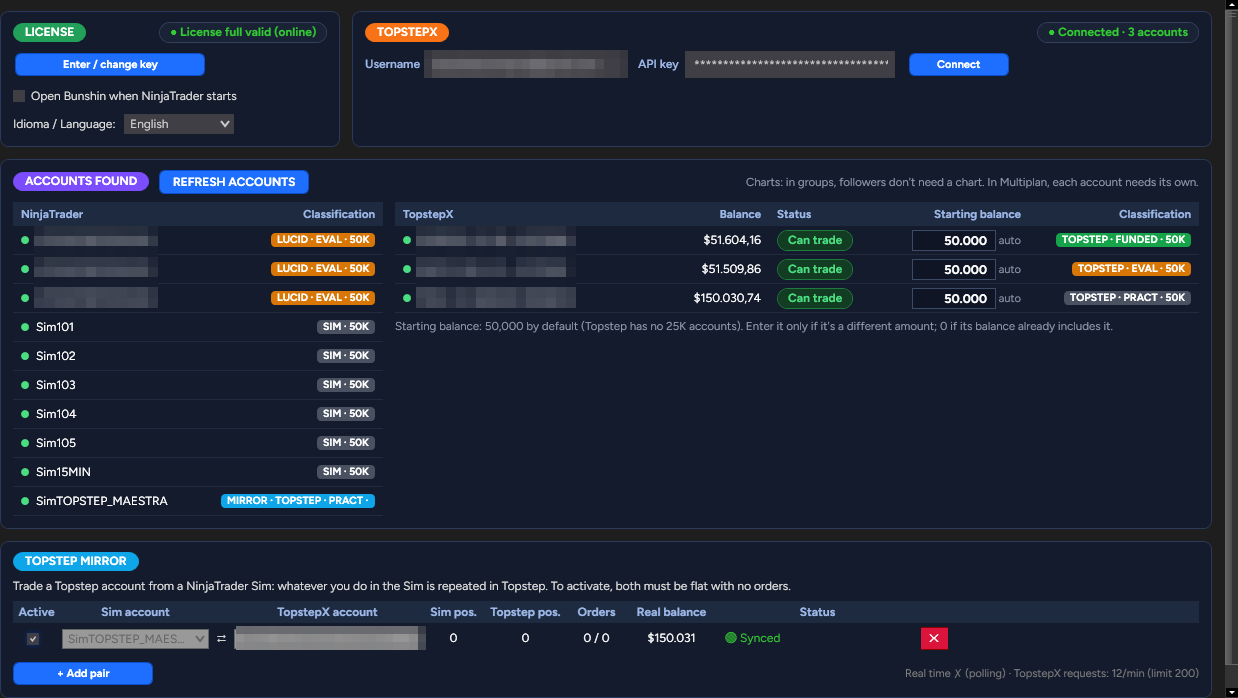
The first tab. This is where you activate your license and, if you use Topstep, connect TopstepX.
- License: click "Enter / change key" and paste the key you received at purchase.
- TopstepX: enter your TopstepX username and API key and click "Connect". Your Topstep accounts appear in the table with their balance.
- Starting balance: for Topstep accounts with no size in the name (for example EXPRESS), make sure the size is correct.
- Open on startup: check the box if you want Bunshin to open automatically with NinjaTrader.
3. Accounts and plans
Build your plans to fit you and your strategy.
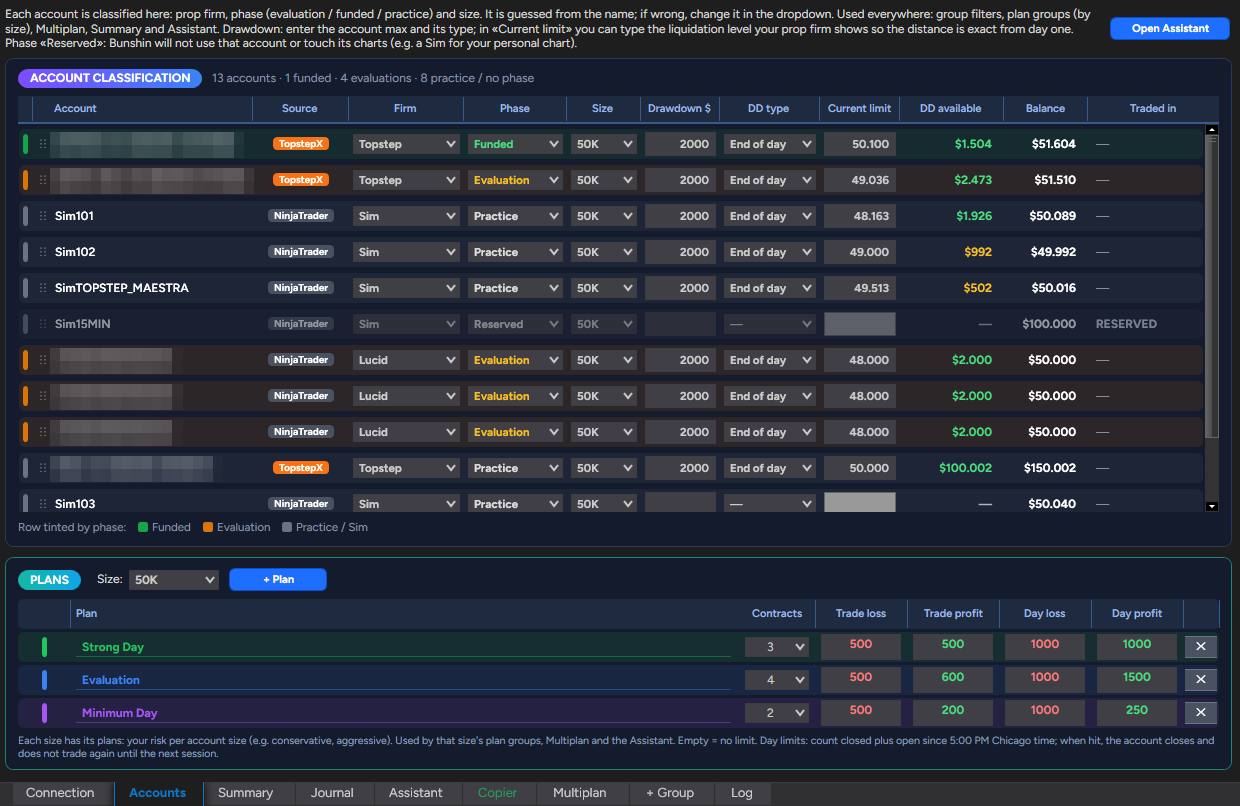
The Accounts tab holds the classification of all your accounts. Bunshin infers it from the account name; if something is wrong, change it in the dropdown.
- Firm, phase and size: used throughout Bunshin (labels, filters, plan groups and totals). Sim accounts never count toward totals.
- Reserved: choose this phase for an account Bunshin must never touch, for example the one on your personal chart.
- Drawdown $ and DD type: the account's max drawdown and how it moves (end of day, intraday or static). Bunshin uses them to show the distance to drawdown everywhere.
- Current limit: if your prop firm shows a different liquidation level, type it here and press Enter; Bunshin tracks from that level.
Below are the Plans, by size. Each plan has contracts, loss and profit per trade, and a daily loss and daily target. Create them with "+ Plan"; click a plan's name to rename it.
4. Copier
Create a Copier group with "+ Group" (or with the Assistant). In its tab:
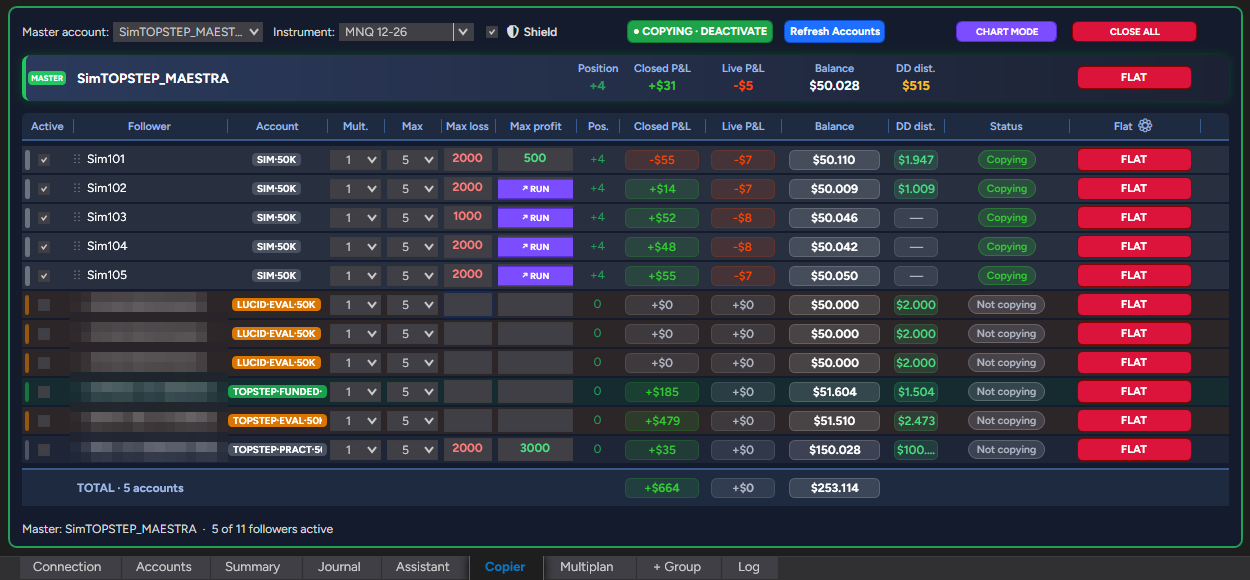
- Choose the master account and the instrument.
- On each follower account: Mult. (contracts per master contract), Max (contract cap) and, if you want, the day's Max loss and Max profit.
- Check Active on the follower accounts.
- Click ACTIVATE COPIER. The master's chart opens with its account in Chart Trader.
- Trade the master as usual: chart, DOM or Chart Trader.
- Max loss / Max profit track each account's result for the day (closed plus open, since 5:00 PM Chicago time). When one is hit, that account is closed and stops copying.
- ↗ RUN appears on an account in profit: click it and the account is not cut at its Max profit until that trade closes. If you cancel it once the account is already above its Max profit, it does not close: a locked floor stays at the Max profit (🔒) and it only closes if the P&L comes back to that level, same as in plan groups. To take profit sooner, use FLAT.
- FLAT on each row closes only that account; CLOSE ALL closes the master and every follower account.
- Use the ⚙ next to Flat to choose which columns are shown. The TOTAL row adds up all live accounts.
The Copier tab shows all your accounts. If you want a copier with only some of them (for example, only your funded accounts, or only one firm's evaluations), create a new group with "+ Group", choose the Copier type and, under "Accounts shown in this group", filter by firm, phase and size. To pick accounts one by one, use the Assistant: "Pick manually" and "Copier only".
Anti-hedge: Bunshin never leaves two accounts on opposite sides of the same market. It won't copy the entry that would cause it (the account shows "Blocked: hedge with …"), it disables the opposite buttons in the other accounts' Chart Trader (⛔ HEDGE), and it instantly cancels any opposite order coming from the DOM or another program, with an alert on the chart.
5. Plan groups
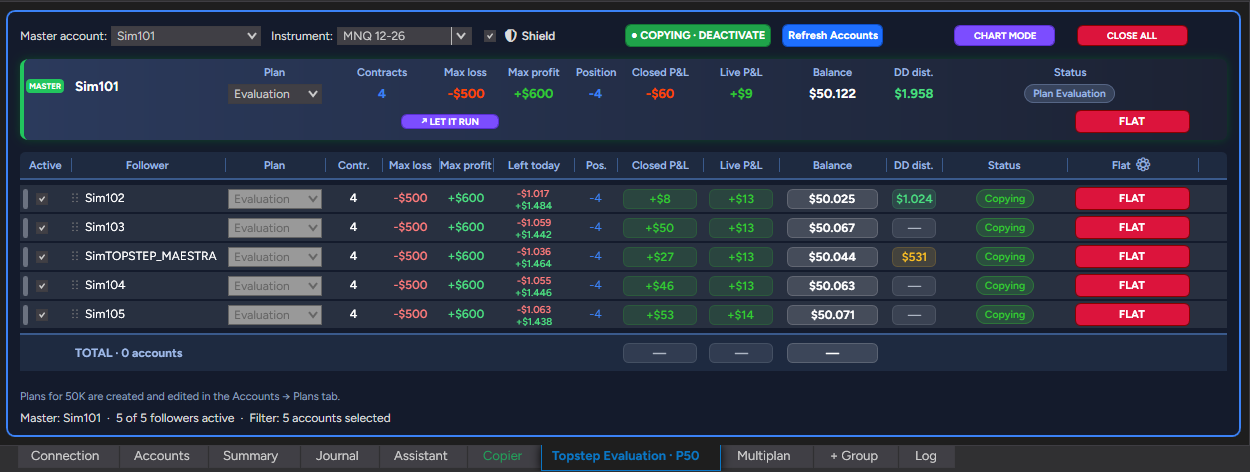
A plan group is a copier that applies one of your plans. Create it with "+ Group", choosing "Plan" and the size.
- Choose the plan on the master's row: its contracts are set in the master's Chart Trader.
- Follower accounts copy the master exactly. Each row shows what the plan applies to that account and what is left today.
- When the trade hits its loss or profit, everything closes and the copier stops.
- When an account hits its daily limit, it closes and stays locked until the next session. This does not apply in Playback.
- LET IT RUN and LOCK TARGET appear on the master when the trade is in profit.
Left today shows two figures per account: in red, how much it can still lose today before hitting the plan's day loss; in green, how much is left to reach its day target. It uses the day's result (closed plus open since 5:00 PM Chicago time). Example: with a plan day loss of 1,000 and a day target of 1,500, an account at -35 shows -965 / +1,535.
6. Multiplan
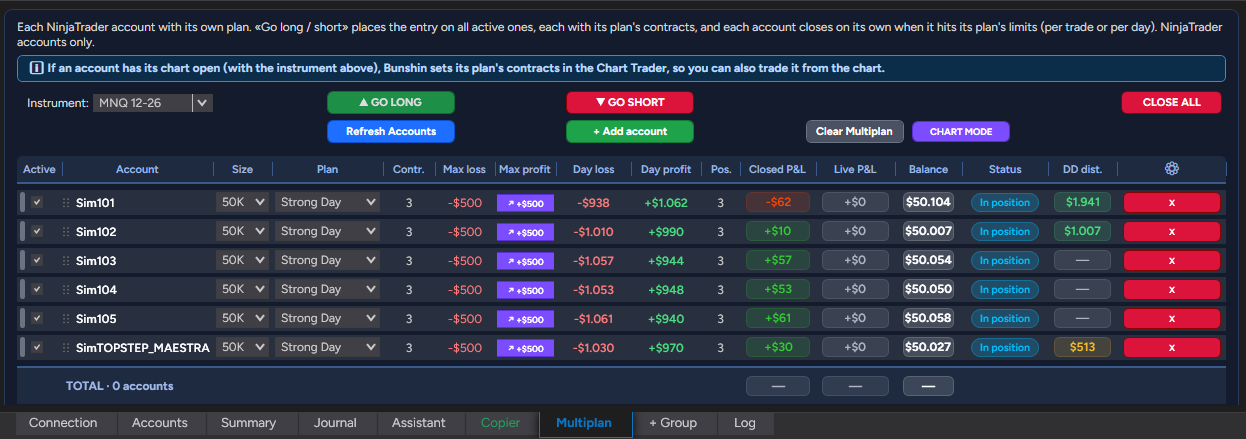
For trading several NinjaTrader accounts at once, each on its own plan, with no master.
- Add the accounts with "+ Add account" and choose a plan for each one.
- Check Active on each one.
- When you activate Multiplan, Bunshin opens one chart per account on its own, with the account and its plan's contracts already set in Chart Trader. You don't have to set anything up by hand.
- GO LONG / SHORT enters on every active account. You can also enter from each account's chart.
Each account closes on its own at its limits. The "Day loss" and "Day profit" columns show what is left today.
7. Shield
The 🛡 Shield checkbox is in each group's toolbar and applies to all groups. With it on:
- If an account doesn't match the master, Bunshin first tries to correct it; if it still doesn't match after 10 seconds, the account is closed and deactivated, and the alarm sounds.
- If an order on an account fails (rejected, unconfirmed, disconnected), that account is closed and deactivated.
- The reason is recorded in the Log tab. To resume copying on that account, check Active again.
Shield watches groups (Copier and plan groups). It does not act on Multiplan or on the master.
8. Assistant
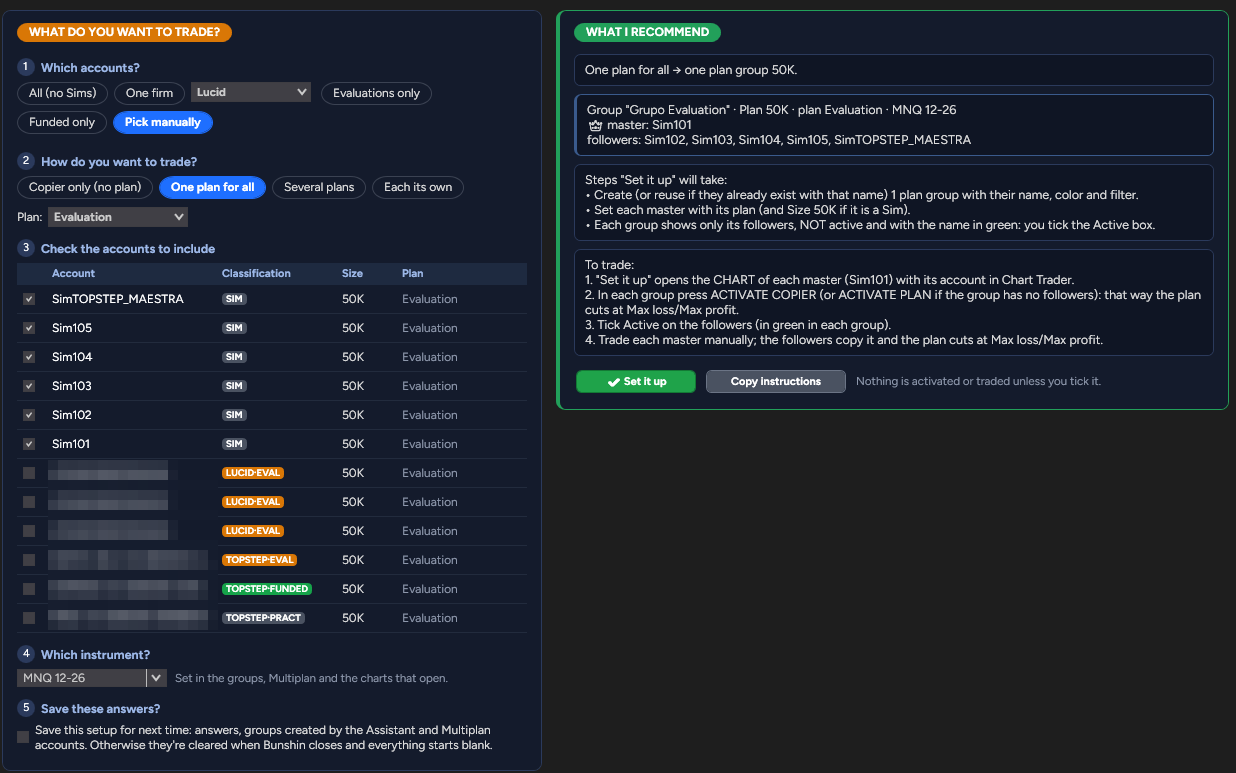
You tell it what you want; the Assistant does all the work.
Answer a few questions (which accounts, how you want to trade, which instrument) and click "Set it up": the Assistant creates the groups and their tabs, picks the master, places each account with its plan or limits, and opens the charts with the contracts set. All that's left is to turn on copying, and that call is yours.
With "Copier only", you pick the master in the table and the Assistant leaves the Copier ready with the accounts checked.
9. Summary and chart mode
- Summary: the day's P&L across all accounts, the ones currently trading and a card per group, with buttons to cancel orders, flatten and deactivate everything.
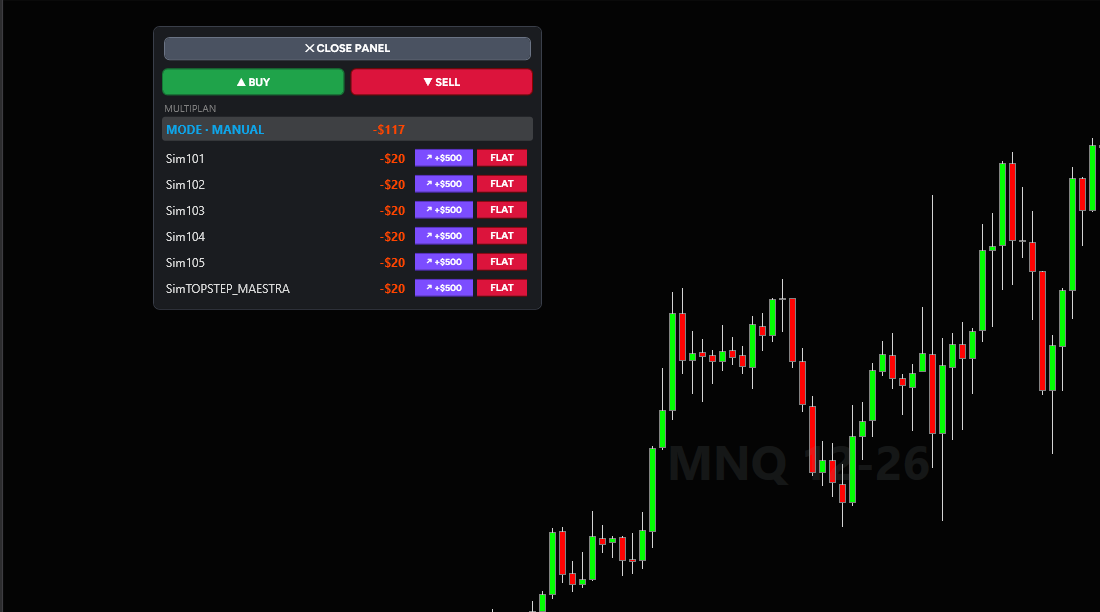
- Chart mode: shrinks the group or Multiplan to a small always-visible window over the chart, with each account's P&L and its FLAT button.
- Colors: each group has its own color on its tab, its frame and in the Summary. Right-click the tab to change it.
10. Journal
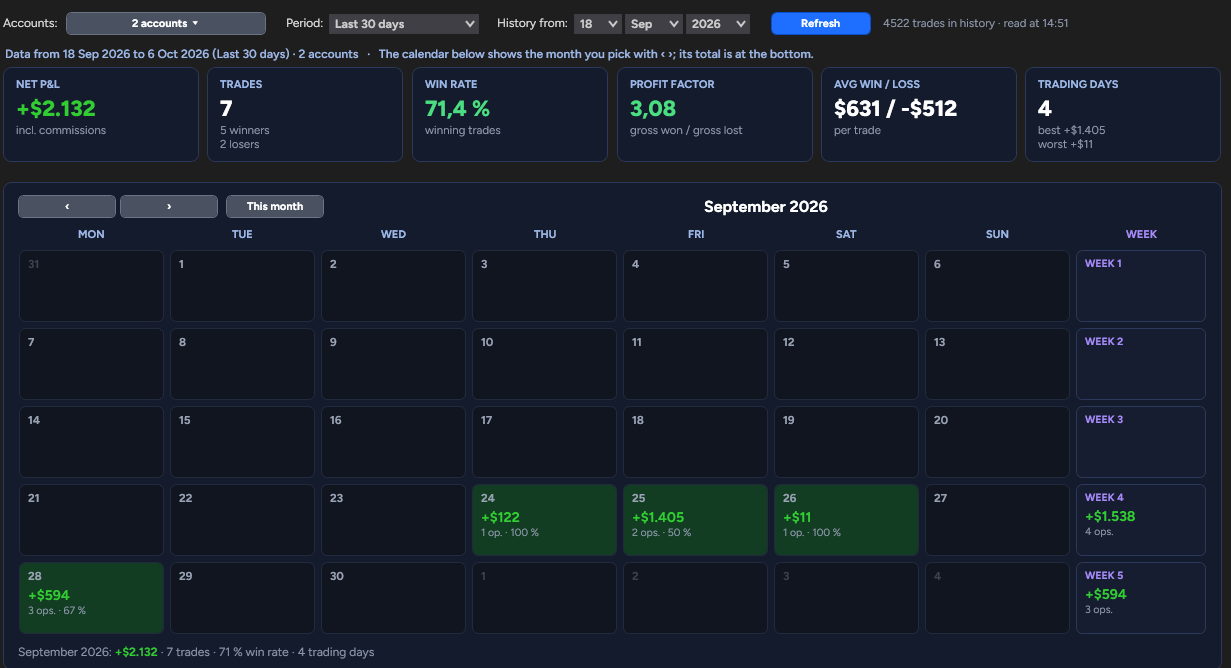
Reads your NinjaTrader and TopstepX history and shows your results including commissions.
- Accounts: one, several or all. "All" excludes Sim accounts used only as a master or mirror, and Playback.
- Period: Today, This week, This month, Last month, Last 30 days, This year, All or Custom.
- History from: anything before that date is ignored. With the "All" period, data starts on that day.
- Also show old accounts: includes accounts that no longer exist in NinjaTrader.
- Click Refresh to load the latest trades.
11. Topstep Mirror
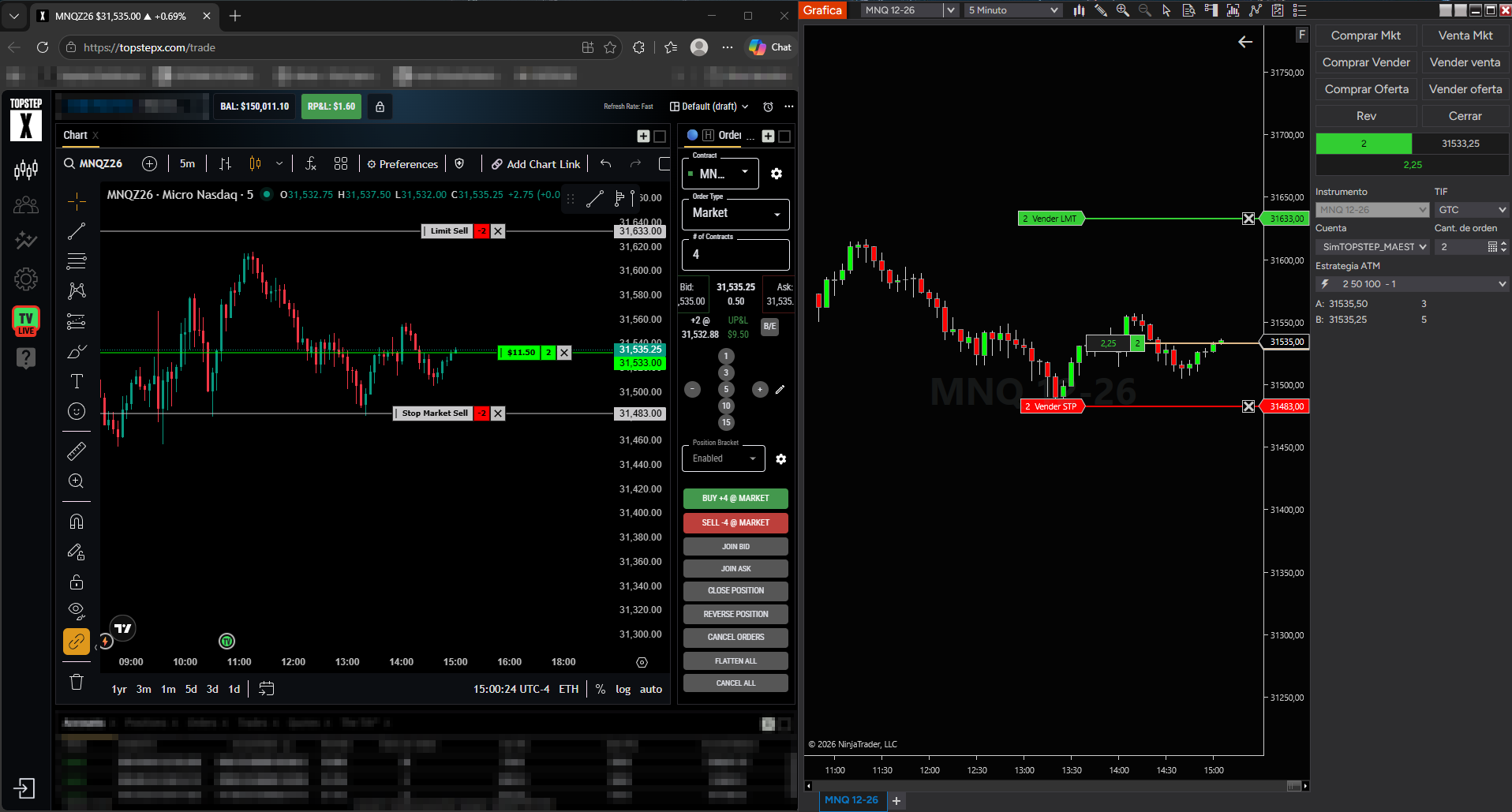
Trade Topstep as if you were on a NinjaTrader chart.
In the Connection tab you can pair a NinjaTrader Sim account with a Topstep account. From then on, everything you do on the Sim is done the same way on Topstep: not just entries and exits, but also the limit orders, stops and targets you place on the chart show up as the same orders in your Topstep account. To turn it on, both accounts must be flat with no working orders. If Topstep rejects 3 corrections in a row, the mirror turns off.